

Online tracking remains a big concern as we enter 2026. I see how users are extra careful about their data, especially after hearing real stories or attending digital forensics discussions like those I present. Protecting privacy isn’t only about using the right software; your browser’s settings matter even more. Over the past years, I noticed browser privacy settings evolved to give more control to users. Setting them right is key, and it’s amazing how much you can block—whether you’re a tech pro or just want to feel safer every day. In this article, I’ll share the seven browser privacy settings I always recommend to stay a step ahead.
Why browser privacy settings matter now more than ever
Tracking has become more sophisticated. Sites collect data using cookies, fingerprinting, and even subtle tricks like cross-site scripting. When I explain these at events, people are often surprised at the many hidden ways they’re monitored. With cyberattacks and digital scams surfacing everywhere, taking some time to adjust privacy settings pays off.
The seven privacy settings that really block tracking in 2026
Every browser offers a range of privacy settings. Some are obvious, others are a little tucked away. In my experience, these seven are the game changers:
Anti-tracking mode
Most browsers now offer anti-tracking or enhanced privacy modes. When I first switched to this mode, pop-up ads and tailored banners cut down sharply. Enabling anti-tracking means your browser automatically blocks many known tracking scripts, pixel trackers, and redirect links.
The fewer trackers load, the less data sites can collect.
To use: Usually found under "Privacy" in your browser’s main settings menu. Toggle it on for the most up-to-date blocking.
Third-party cookie blocking
This setting stops cookies not directly from the site you’re visiting, which is a big way advertisers follow you around the web. Over the last few years, I’ve seen websites increasingly respect this, though some will ask you to enable cookies for the best experience. I often recommend users block third-party cookies and only allow necessary ones when websites require it for basic function.
Modern browsers let you set this up with a simple switch, usually under "Cookies and site data." Choosing "Block third-party cookies" is usually enough to defeat most basic tracking techniques.
Global do not track requests
This feature tells every site you visit that you don’t consent to tracking. While not all sites honor this, the setting is visible and signals your preference.
Every bit of resistance matters, even if not all websites comply.
If you want to show you’re serious about privacy, enable this toggle in your browser’s privacy settings. I like explaining this in my talks, as it’s a good conversation starter about digital consent and regulation.
Clear site data on exit
Browsers can now automatically wipe cached data, cookies, and sometimes local storage every time you close them. I use this on my personal devices to avoid lingering session traces, especially after handling sensitive work. This feature adds a layer of protection if multiple people use the same computer.
Look for "Clear data on exit" or a similar setting, often in the privacy or security tabs of your browser options. Be sure to review what data will be deleted to keep convenient saved logins as needed.
Site permissions control
I always remind audiences that sites can access your microphone, camera, and location if you don’t check permissions. In 2026, all mainstream browsers let you restrict these on a per-site basis. It’s always worth opening your permission manager and reviewing which sites have access to what.
I reserve camera and microphone permissions only for meetings or direct communication platforms that truly need them. Denying blanket access blocks one of the newest frontiers for digital surveillance.
Fingerprinting protections
Even with cookies blocked, some sites try browser fingerprinting: collecting info about your device, fonts, plugins, and even your screen size, to create a unique profile. In my experience, fingerprinting has grown more advanced, but so have defenses. Most browsers now block these scripts or try to randomize the data they provide to tracking sites.
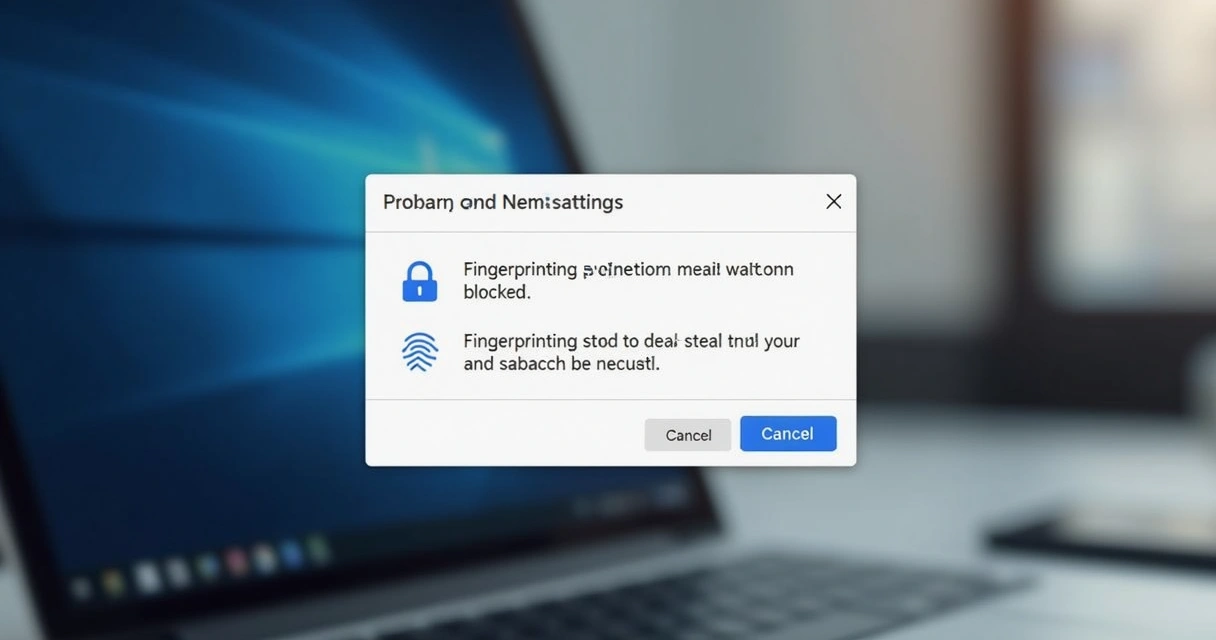
This setting is sometimes under "Advanced privacy" or "Security features." Enable it to break many identification efforts.
Private browsing enhancements
Private, incognito, or guest browsing modes got much smarter in the last two years. Not only do they avoid saving history or cookies, but some browsers now automatically block trackers and integrate with anti-fingerprinting tools while you’re in these sessions. I often use private mode for researching delicate topics or reviewing sensitive material for a digital investigation, as Thiago Vieira.
Just remember that incognito mode isn’t fully anonymous—it’s a good way to limit tracking on a session, not vanish from the internet.
How I use privacy settings day to day
I always recommend reviewing and updating these settings a few times a year. The biggest shock for most people comes when they check the permissions list: cameras, microphones, and location access can sneak in after one rushed click. Just last month, at a workshop, a participant discovered an old shopping site still had camera access—something you never want to see.
Audit permissions. It’s fast, and can reveal surprising risks.
For a step-by-step approach, start by switching your browser to anti-tracking mode, then move through cookies, permissions, and fingerprinting options. You’ll likely notice fewer ads, quicker page loads, and a lighter digital trail—especially if combined with other best practices I cover in my talks.
Tips for advanced users and businesses
If you manage workstations for a team, setting privacy defaults centrally can make a big difference. During my corporate security seminars, I show how browser settings can be pushed via company policies or remote tools. This ensures everyone starts with the right baseline—no more “I didn’t know” surprises.
It’s also smart to teach employees about tracking risks. Real-life cases, like those I share in Thiago Vieira’s lectures, can turn a dry policy into something people relate to. When staff see how a forgotten setting led to a data leak, they care more about privacy than after a hundred reminder emails.
Keep learning and stay prepared
Online privacy is ongoing. Browsers keep adding features, attackers keep finding loopholes. Staying up to date is part of being resilient online. I keep a list of discussions on my author profile, where I revisit privacy as new tricks emerge.
Sometimes I reference my earlier articles, like the one on digital resilience tips, to suggest combinations of browser settings and safe habits.
Curious about real-world case studies? These get covered more deeply in recent posts, such as this breakdown of how phishing leverages browser vulnerabilities, or in the search section of my blog.
Conclusion: Privacy is power—take control today
In my experience, the people who tweak their browser privacy settings are less likely to be surprised by leaks or suspicious ads. The true value isn’t just fewer trackers—it’s peace of mind and increased confidence in your daily online life. These seven settings form your first, easiest shield against digital risks.
If you want to go deeper, have your own questions, or see how these tips apply to your organization, you can learn more with Thiago Vieira’s articles and lectures. Take the next step and see how focused guidance on browser safety can help you and your team stay ahead of digital threats.
Frequently asked questions
What are browser privacy settings?
Browser privacy settings are controls that let you decide what data websites can collect about you, and how much browsers themselves store or share your activity. They include things like cookie restrictions, permission controls, and anti-tracking tools.
How to enable anti-tracking in browsers?
To enable anti-tracking, go to your web browser’s settings or preferences, look for the “Privacy” or “Security” section, and find options labeled "anti-tracking," "enhanced tracking protection," or similar. Simply toggle the switch to activate it. Each browser may place this option in a slightly different spot.
Which browsers block tracking best?
Most modern browsers have made big improvements, offering native anti-tracking tools, fingerprinting protection, and strict cookie policies. For more on safe browsing, you can follow updates on my recent privacy article, which looks at broad features rather than specific brands.
Is it worth changing privacy settings?
Yes, updating browser privacy settings greatly reduces how much personal information is collected as you browse, and often leads to fewer ads and safer browsing overall. Many issues I handle in digital forensics are avoidable if users had enabled these protections early.
How often should I update privacy settings?
I recommend checking privacy settings every few months, or whenever your browser gets a significant update. New settings may appear, and attackers often find fresh tricks. Regular reviews help you stay protected as the internet changes.